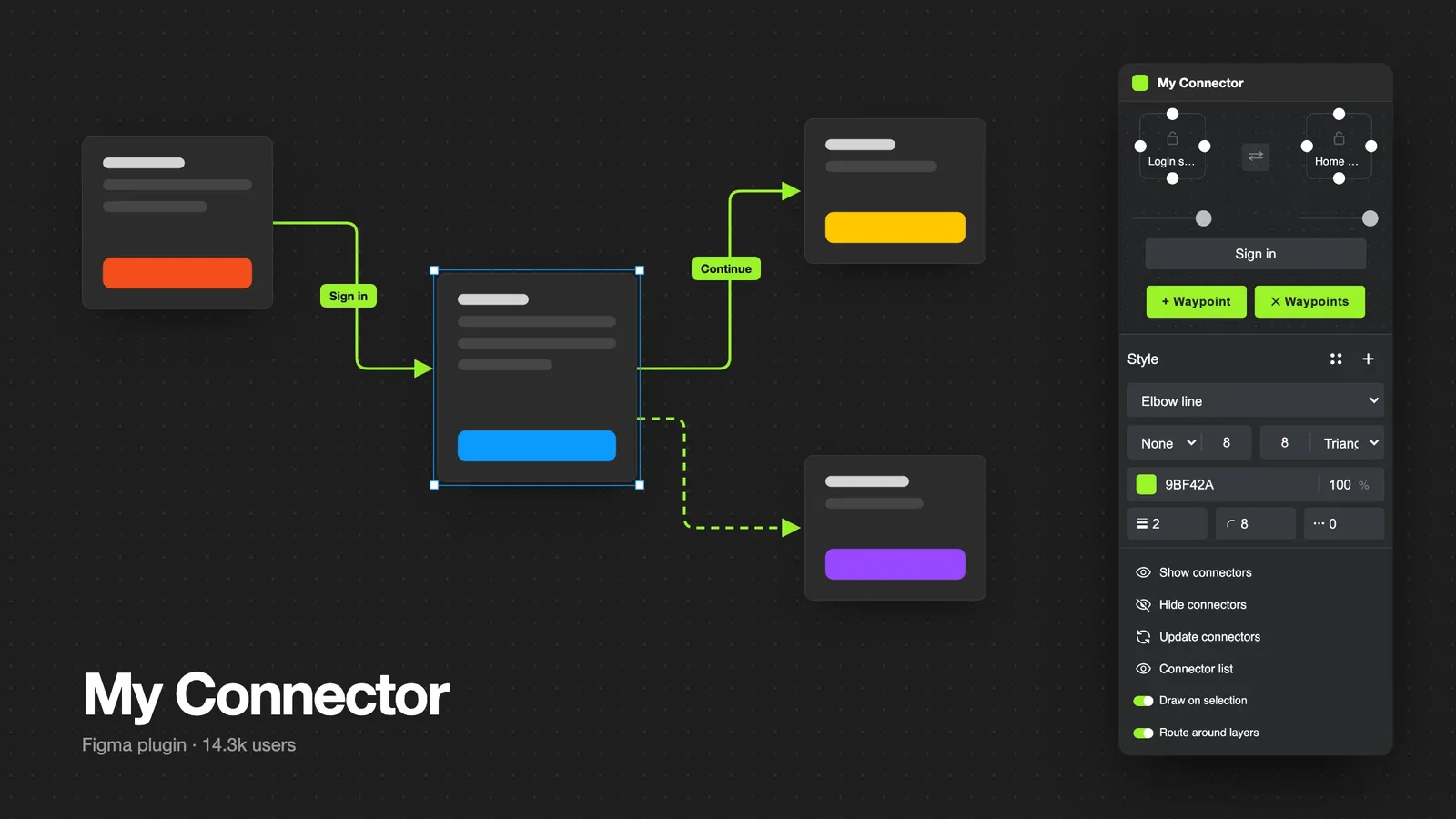
Overview
My Connector is a Figma plugin for drawing user-flow diagrams. Select a layer, hold Shift, click another layer, and a connector appears. It keeps following both layers as you move them.
I designed, built and still maintain it on my own. It launched on the Figma Community in April 2024 and has shipped 17 versions since.
The problem
User flows are one of the most common things UX designers draw, and one of the most tedious. Arrows drawn by hand break the moment a screen moves, re-routing them around other frames is fiddly, and keeping a consistent style across a big file takes discipline nobody has at 6 pm before a review.
Try it
This is a small browser version of what the plugin does inside Figma. Drag the frames around and switch the line style.
How it works
- Select the first layer.
- Hold down the Shift key.
- Click another layer to create the connector.
- Release Shift. Move either layer and the connector follows.
For longer flows, select three or more layers and use Connect in order to chain them in one click.
Designing the panel
The panel is built to feel like part of Figma, not a website squeezed into a plugin window: the same dark UI, compact 272px width and dense controls designers already know from the properties panel.
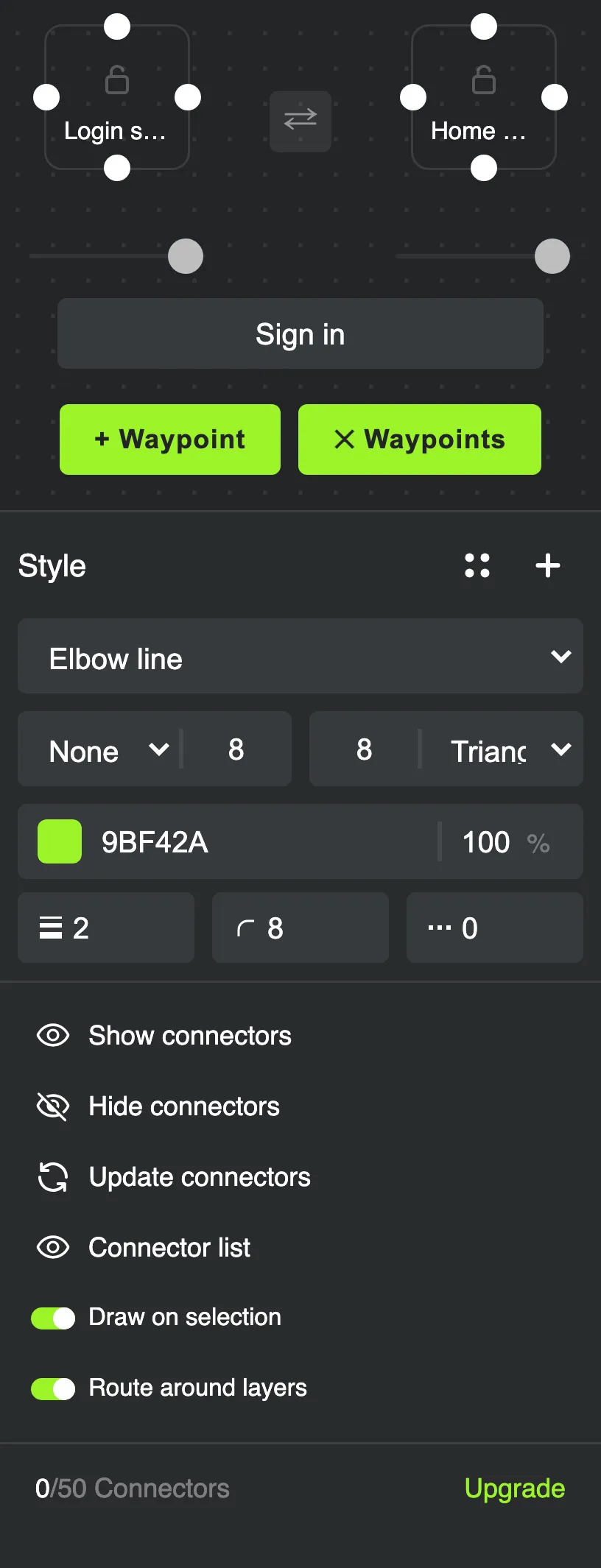
- A visual terminal picker. Instead of dropdowns for “start side” and “end side”, each end of the connector is a small box with a dot on every side. Click a dot to pin the direction, or leave it on auto.
- Everything about one line in one place. Line style, stroke caps, offset, color, thickness, corner radius and dashes sit in a single compact block.
- Reusable styles. Save a connector style once and it is shared with everyone working in the same file, so a team’s flows stay consistent.
- File-level controls. Show, hide or refresh every connector in the file, or open the connector list to jump straight to one.
Engineering it
- Smart routing. Connectors route around other layers so lines do not cut through screens, with waypoints when you want to force a path.
- Three line styles. Elbow, straight and curved, with labels that stay attached to the middle of the line.
- Fast in big files. Connectors sync page by page at startup with a progress bar, so the plugin opens quickly even in large files.
- Private by default. The plugin has no network access at all. Every operation happens locally inside Figma, as the Data security section on the plugin page shows.
Listening to users
Comments on the Community page drive the roadmap. A few examples:
- A user asked for a circle style for start and end points, and it shipped in a later version.
- A user reported Figma freezing for about ten seconds when hiding connectors in large files. I reworked show, hide and update to fix it.
- A user asked whether the plugin collects design data. It does not, and the no-network-access design above is the reason.
Business model
My Connector is free for up to 50 connectors per file, with an in-app purchase through Figma’s native payments to unlock unlimited use.
The result
- 14.3k users on the Figma Community.
- 129 likes.
- 17 versions shipped since April 2024.
What I learned
Building a tool for other designers is the most honest usability test there is: people install it in seconds and leave just as fast. Keeping the plugin small, fast and native-feeling mattered more than any single feature.